Install with Helm
This topic describes how to use Helm to install releases that contain one or more Helm charts. For more information about the helm install command, including how to override values in a chart during installation, see Helm Install in the Helm documentation.
Prerequisites
Before you install, complete the following prerequisites:
-
The customer record in the Vendor Portal must have a valid email address. This email address is only used as a username for the Replicated registry and is never contacted. For more information about adding an email address for a customer, see Creating a Customer.
-
The customer must have the Existing Cluster (Helm CLI) install type enabled. For more information about enabling install types for customers in the Vendor Portal, see Manage Install Types for a License.
-
Create an image pull secret for the proxy registry and add it to your Helm chart. This ensures that the Replicated proxy registry can be used to grant proxy access to your application images for Helm CLI installations. To create the image pull secret and add it to your Helm chart, follow the steps in Use the Proxy Registry with Helm CLI Installations.
-
Declare the Replicated SDK as a dependency in your Helm chart. For more information, see Install the SDK as a Subchart in Installing the Replicated SDK.
-
To use the Security Center (Beta), add a unique HelmChart custom resource for each Helm chart in your release. The Security Center uses these HelmChart custom resources to create the list of images that it scans and reports on.
The following is an example HelmChart custom resource for a chart named
examplechartwith a chart version of1.0.0:apiVersion: kots.io/v1beta2kind: HelmChartmetadata:name: examplechartspec:chart:# name must match the name of the chartname: examplechart# chartVersion must match the version of the chartchartVersion: 1.0.0For more information about the HelmChart custom resource, see HelmChart v2.
Firewall openings for online installations with Helm
The domains for the services listed below need to be accessible from servers performing online installations. No outbound internet access is required for air gap installations.
For services hosted at domains owned by Replicated, the table includes a link to the list of IP addresses for the domain at replicatedhq/ips in GitHub. Note that the IP addresses listed in the replicatedhq/ips repository also include IP addresses for some domains that are not required for installation.
For any third-party services hosted at domains not owned by Replicated, consult the third-party's documentation for the IP address range for each domain.
| Domain | Description |
|---|---|
replicated.app * | Required when the Replicated SDK is included. Application metadata is pulled from For IP addresses, see replicatedhq/ips. |
registry.replicated.com | Required only for accounts not yet using the single-registry model. This domain is owned by Replicated, Inc., which is headquartered in Los Angeles, CA. For IP addresses, see replicatedhq/ips. |
proxy.replicated.com | Private images and Helm charts are pulled through the proxy registry. This domain is owned by Replicated, Inc., which is headquartered in Los Angeles, CA. For IP addresses, see replicatedhq/ips. |
* Required only if the Replicated SDK is included as a dependency of the application Helm chart.
Newer accounts route all image and chart pulls through proxy.replicated.com and do not need to allow registry.replicated.com. Older accounts must allow both. To move to the single-registry setup and remove registry.replicated.com from your allowlist, contact your Replicated account representative.
Install
To install a Helm chart:
-
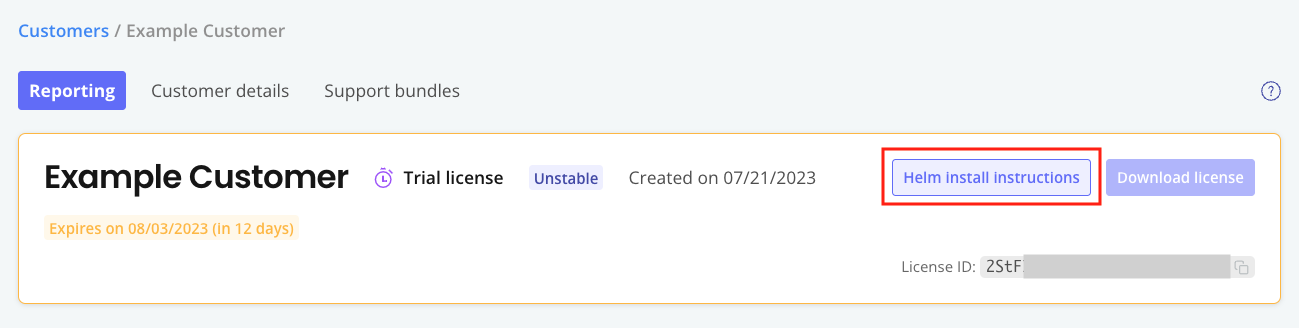
In the Vendor Portal, go to Customers and click on the target customer.
-
Click Helm install instructions.
 note
noteHelm charts marked with the
kots.io/installer-only: "true"annotation will not appear in the Helm install instructions. These charts are deployed only when using Replicated installers (Embedded Cluster, KOTS, and kURL). For more information, see HelmChart v2. -
In the Helm install instructions dialog, run the first command to log in:
helm registry login proxy.replicated.com --username EMAIL_ADDRESS --password LICENSE_IDWhere:
EMAIL_ADDRESSis the customer's email addressLICENSE_IDis the ID of the customer's license
noteYou can safely ignore
WARNING: Using --password via the CLI is insecure.The warning appears because the password is stored in bash history.To avoid the warning, click (show advanced) to use a command that prompts for the password.
noteNewer accounts log in to
proxy.replicated.comand pull fromproxy.replicated.com/registry/..., routing all image and chart pulls through one registry. Older accounts might instead seeregistry.replicated.comin the dialog. Both work, so run the commands shown. To switch to the single-registry commands, contact your Replicated account representative. -
(Optional) Run the second and third commands to install the preflight plugin and run preflight checks. If no preflight checks are defined, these commands are not displayed. For more information about defining and running preflight checks, see About Preflight Checks and Support Bundles.
-
Run the fourth command to install using Helm:
helm install RELEASE_NAME oci://proxy.replicated.com/registry/APP_SLUG/CHANNEL/CHART_NAMEWhere:
RELEASE_NAMEis the name of the Helm release.APP_SLUGis the slug for the application. For information about how to find the application slug, see Get the Application Slug.CHANNELis the lowercased name of the channel where the release was promoted, such asbetaorunstable. Channel is not required for releases promoted to the Stable channel.CHART_NAMEis the name of the Helm chart.
noteTo install the SDK with custom RBAC permissions, include the
--setflag with thehelm installcommand to override the value of thereplicated.serviceAccountNamefield with a custom service account. For more information, see Customizing RBAC for the SDK. -
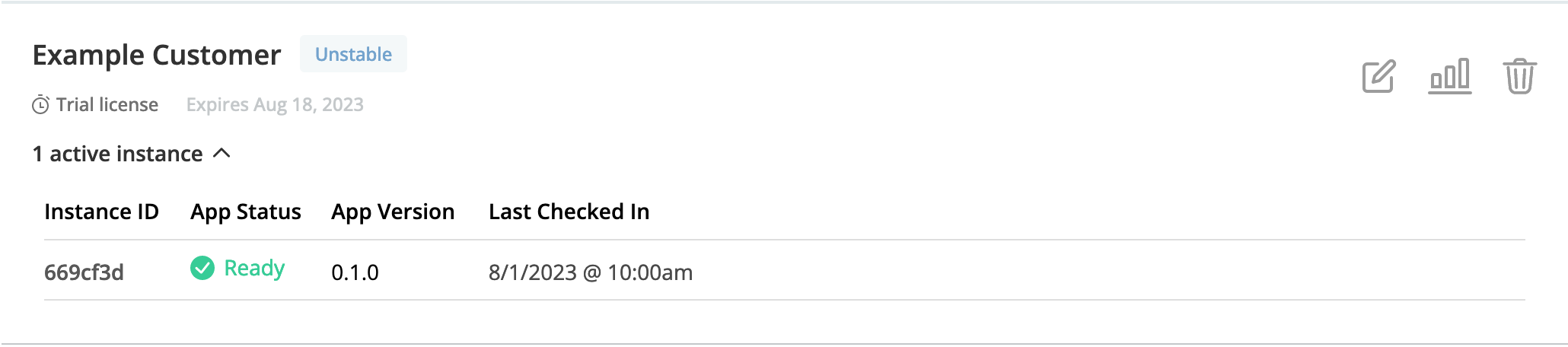
(Optional) In the Vendor Portal, click Customers. You can see that the customer you used to install is marked as Active and the details about the application instance are listed under the customer name.
Example: